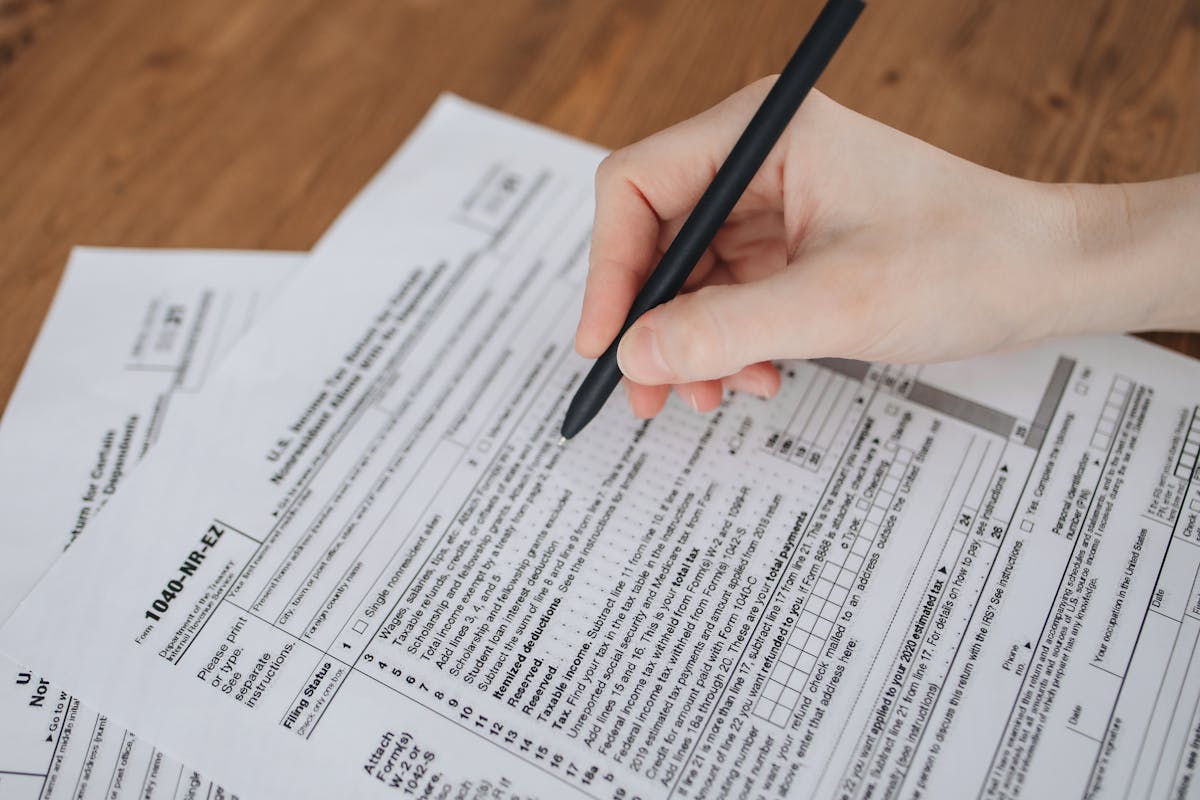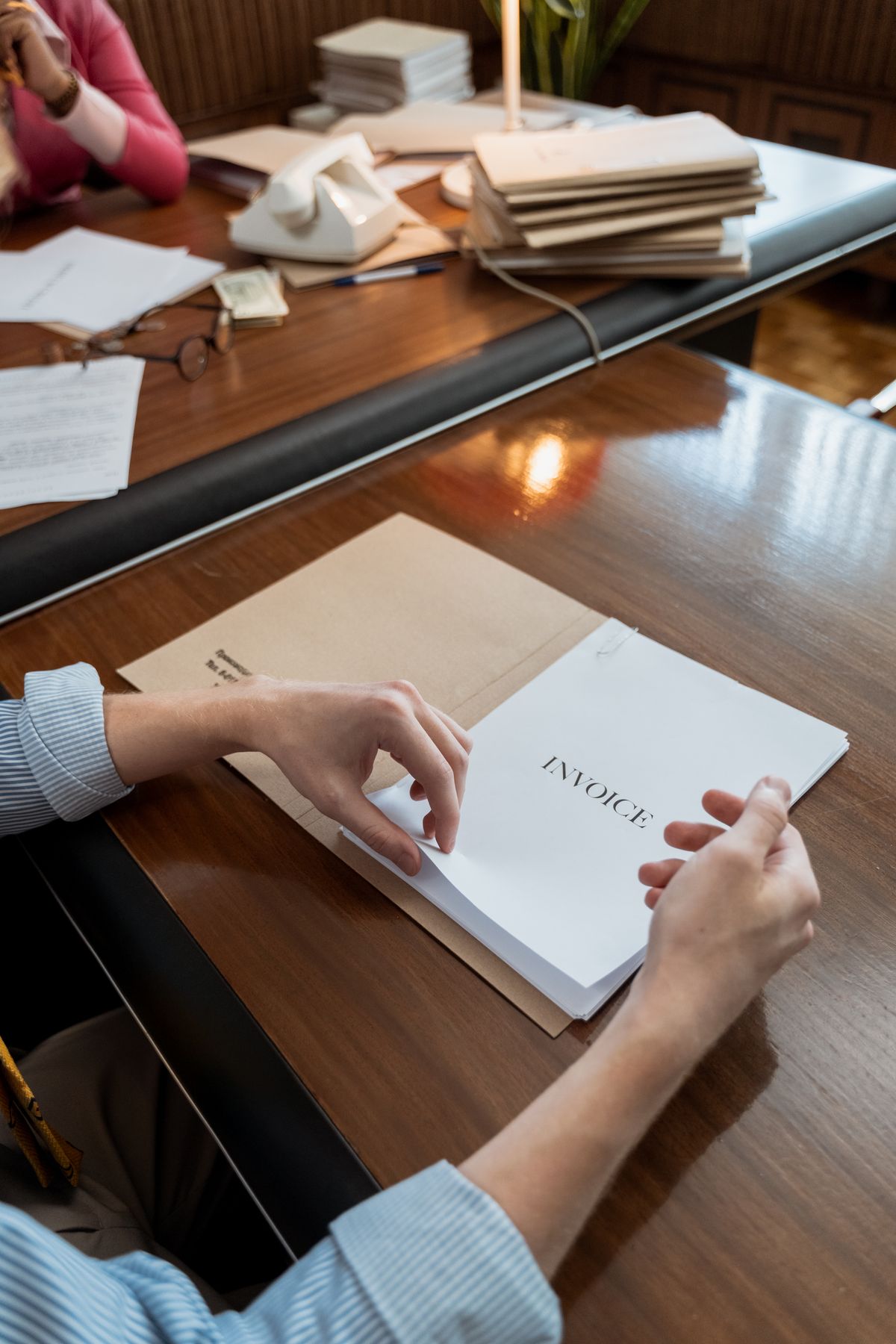
PDFs are the safest way to share quotes. They preserve your formatting, prevent accidental edits, and signal professionalism. Simple PDFs or fillable forms work across devices without special software.
Why PDF Beats Word or Excel for Quotes
You spend 30 minutes building a quote in Excel. Client opens it on a different version of Office. Columns collapse. The logo shifts. The total formula breaks. They’re reading mangled numbers and wondering if you’re serious.
PDF solves that entirely. Your layout, fonts, and branding are locked the moment you export. A client on a five-year-old Android tablet sees the same document as a client on a MacBook Pro.
There’s a trust signal here too. A “Quote_Project_042.pdf” attached to an email reads differently than a .docx or a screenshot. It says you prepared this deliberately. When you’re competing against other freelancers, small signals add up. A clean business quote template PDF can be the difference between getting a follow-up call and getting ignored.
Beyond presentation, PDFs protect you. Clients can’t accidentally overwrite your rates or change line items without you knowing. If there’s ever a dispute about what you quoted, the PDF is your record. It’s timestamped, formatted, unambiguous.
Building Your Template Before You Export
The PDF is only as good as what you put into it. Build the template in whatever tool you’re comfortable with, Google Docs, Word, Excel, or Canva all work fine, then export at the end.
Every solid business quote template PDF needs these sections:
Header: Your business name, logo, address, phone, and email. Put this at the top where it’s impossible to miss.
Client block: Client name, company, project address, and the date you’re sending. Add a quote number (even something simple like Q-2026-047) so you can reference it in follow-up emails.
Scope of work table: One row per line item. For a website project, that might look like:
| Item | Description | Qty | Unit Price | Total |
|---|---|---|---|---|
| Discovery | Kickoff call + requirements doc | 1 | $350 | $350 |
| Design | Homepage mockup (2 rounds revision) | 1 | $800 | $800 |
| Development | 5-page responsive build | 1 | $2,200 | $2,200 |
| Copywriting | 5 pages, SEO-optimized | 1 | $650 | $650 |
Totals block: Subtotal, any applicable tax, and grand total. If you’re quoting in phases, break the total by phase.
Terms: Quote valid for 30 days. Payment terms (50% upfront, 50% on delivery, for example). What’s excluded from scope.
Signature line: Even if you’re not using e-signatures, include a “Client Approval” line with space for name, signature, and date. It signals that the quote requires a formal decision.
Once the layout looks right, export to PDF. In Google Docs: File > Download > PDF Document. In Word: File > Export > Create PDF. In Canva: Download > PDF Print. Test it by opening the exported file before you send it.

Free Fillable PDF Tools (Not Just Adobe Acrobat)
A fillable PDF lets someone type into fields without being able to change anything else. You lock the structure; they fill in the blanks. This is useful when you want clients to add a note, or when you want your own team to complete a pre-formatted quote without touching the layout.
Adobe Acrobat Pro is the standard tool for this, but at around $20/month it’s hard to justify if you’re sending a handful of quotes. Here are free and low-cost alternatives that actually work:
PDF Escape (free, browser-based): Upload your PDF and add text fields, checkboxes, and dropdown menus. No account required for basic use. Good for simple quote forms where clients fill in a project name or select a service tier. Works at pdfescaper.com.
Canva + PDF forms (free tier): Design your quote in Canva, export as PDF, then use PDF Escape or Sejda to add fillable fields on top. Two-step process, but both tools are free.
Sejda PDF Editor (free tier, 3 tasks/day): Cleaner interface than PDF Escape. You can add text fields, dropdowns, and signature blocks. Free tier limits you to three tasks per day and files under 50MB, plenty for quote templates. Available at sejda.com.
LibreOffice Draw (free, desktop): Open-source alternative to Acrobat. You can create fillable PDF forms from scratch using Form Controls. Steeper learning curve but fully free with no upload limits or file size restrictions. Good option if you’re sending high volumes.
Jotform PDF Editor (free plan available): If you collect quote requests through a form, Jotform can auto-generate a formatted PDF from submissions. Free plan allows up to 5 forms. Useful if you want to skip manual data entry entirely.
For most freelancers sending fewer than 20 quotes per month, Sejda or PDF Escape handles the job without spending anything. If you scale past that, LibreOffice or a paid tool makes more sense.
Protecting Your Pricing in the PDF
For competitive bids where pricing is sensitive, you can password-protect the PDF so it can’t be forwarded easily or printed without your knowledge. Adobe Acrobat Pro, Sejda, and most desktop PDF editors include this option.
More practically: add an expiration clause in the document itself. Something like “This quote is valid through June 30, 2026. Pricing subject to change after this date.” Put it near the total, not buried in the footer. When a client comes back three months later saying they’re ready to move forward, you have clear grounds to requote.
If you want a step above that, tools like DocuSign or HelloSign let clients sign PDFs digitally. The audit trail shows exactly when they opened it and when they signed. At $15–$25/month for basic plans, it’s worth considering if you’re regularly sending contracts alongside quotes.
PDF quotes are professional, secure, and universally compatible. They’re the safest format for sending pricing to clients and ensuring nothing changes during transmission.
When PDF Is the Right Choice (and When It Isn’t)
Use a PDF quote when:
- You’re sending a final price to a client and want it locked
- You need a paper trail that can’t be disputed
- You’re sending to someone outside your industry who might have different software
- You’re attaching the quote to an email and want it to look polished on any device
Use an editable format (Word, Excel, Google Sheets) when:
- The client specifically asks to see “working numbers” they can adjust
- You’re in an early scoping call and the quote is clearly a draft
- You’re collaborating internally before sending the final version
The short version: drafts can be editable, but final quotes should always go as PDF. Once you have a business quote template PDF set up, exporting takes about 30 seconds. There’s no reason to send anything less professional.
Turning Your Quote Template Into a Repeatable System
The real value of a business quote template PDF isn’t any single quote. It’s having a system you can repeat without reinventing the document every time.
Set up one master template in Google Docs or Word. Style it once. Save a blank copy labeled “TEMPLATE: do not overwrite.” When you need to send a quote, duplicate the file, rename it with the project and date (e.g., “Quote_TechStartup_May2026”), fill in the specifics, and export as PDF in under five minutes.
Keep a folder (local or Google Drive) organized by year and client. You’ll thank yourself when a client from 14 months ago emails asking what you originally quoted them.
If you’re sending quotes regularly, more than 5 or 6 per month, consider whether a dedicated quoting tool makes sense. Tools that generate PDFs automatically from a form save the formatting step entirely and keep all your history searchable. But for most freelancers starting out, a solid Google Docs template exported to PDF is all you need to look sharp and protect your pricing.