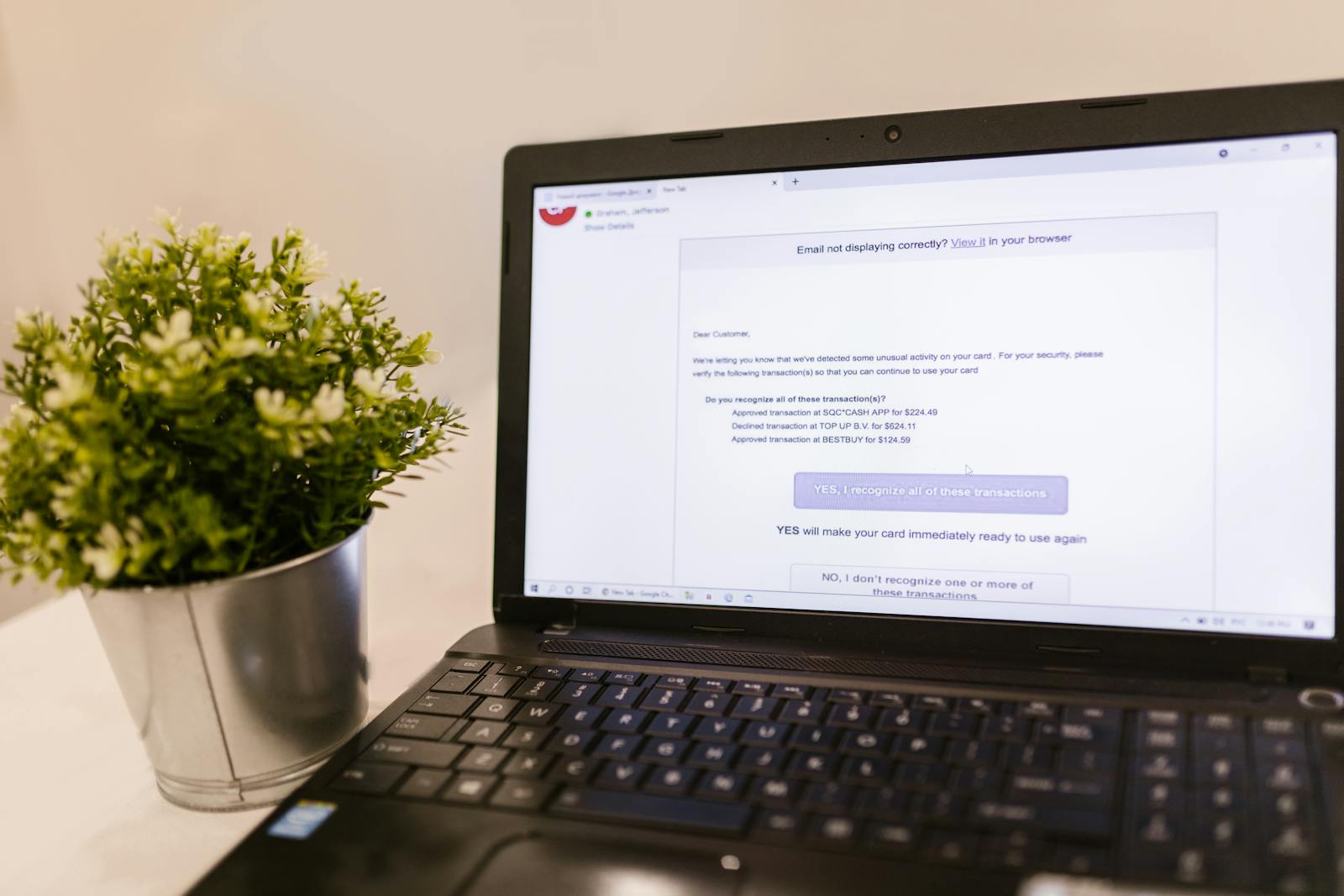
You sent a proposal to a client via Outlook and now you’re wondering whether it landed. Did they see it? Did they open the attachment? Outlook gives you a few options for tracking, with different tradeoffs between reliability and what you can actually learn from the data.
Outlook’s built-in read receipt
Outlook has native read receipt functionality. Here’s how to use it depending on your version.
Outlook desktop (Windows): When composing an email, click the Options tab in the ribbon. In the Tracking section, check “Request a Read Receipt.” Send the email normally.
Outlook on the web (OWA): While composing, click the three-dot menu at the top of the compose window → “Show message options” → toggle on “Request a read receipt.”
Setting it for all outgoing emails: File → Options → Mail → scroll to Tracking → check “Request a read receipt for every message I send.”
When the recipient opens your email, their Outlook client will prompt them: “The sender has requested that you confirm that you read this message. Do you want to send a read receipt?” They can click Send or dismiss.
If they send the receipt, you’ll receive a confirmation email in your inbox. If they dismiss it, you’ll get nothing — and you won’t know whether they declined or just haven’t opened it yet.
Why read receipts often fail
Several factors make Outlook read receipts unreliable:
Recipient declines. Many people click “Don’t send” out of habit or privacy preference.
Automatic decline. Outlook can be configured to never send read receipts: File → Options → Mail → Tracking → select “Never send a read receipt.” Many corporate setups have this enabled by default.
Non-Outlook clients. If the recipient reads your email in Gmail, Apple Mail, or a mobile app, the read receipt mechanism may not function.
Server-level blocking. Some corporate email servers strip read receipt requests before they reach the recipient.
The result: you’ll get confirmations for maybe 20–40% of emails where you request them, even when recipients are actively reading your messages.
Third-party Outlook tracking plugins
For more reliable tracking, several CRM and sales tools add open tracking to Outlook:
HubSpot Sales for Outlook. Free plugin that adds tracking pixels to outgoing emails. You get a desktop notification when the email is opened, with a log in the HubSpot dashboard. Works with Outlook on the web and the desktop app.
Mailtrack. Primarily a Gmail extension, but Mailtrack also supports Outlook.com accounts. Less reliable for corporate Outlook environments.
Salesforce Inbox / Engage. If you’re using Salesforce CRM, their Outlook plugin includes email tracking. Overkill for most freelancers.
These plugins work by inserting an invisible tracking image in your email. When the email is opened and the image loads, the plugin registers an open. The same limitation applies: Apple Mail Privacy Protection and image-blocking clients can suppress the signal.
The better question: did they read the proposal?
Knowing an email was opened is less useful than knowing whether the proposal inside it was actually read.
An email open tells you the subject line worked. It tells you nothing about whether the client engaged with your proposal, read your pricing, or forwarded it to a decision-maker.
For proposals, quotes, and invoices, the more useful approach is to send the document as a tracked link rather than an attachment. The client clicks the link, opens the document in their browser, and you receive a notification that includes how long they spent on it.
Waco3 sends proposals and invoices as tracked links by default. When a prospect opens your proposal, you know immediately — and you know whether they spent 45 seconds skimming or 8 minutes reading every section. That data tells you exactly how warm the lead is before you pick up the phone.
When Outlook read receipts are worth using
Despite the limitations, read receipts are useful when:
- You’re communicating within a Google Workspace or Microsoft 365 organization where everyone’s settings are consistent
- You’re sending high-stakes emails to known contacts and want a paper trail of delivery and receipt
- You’re following up with someone who claims not to have received your message
For client-facing communication — proposals, quotes, follow-ups — tracked document links give you better data with less friction.
Ready to send stronger proposals?
Build, send, and track proposals in one place so follow-up is easier.
Start your free trial →