Microsoft offers several ways to track projects, from free spreadsheets to enterprise software. Here’s what each tool does, what it costs, and whether you actually need it as a freelancer for proposals and projects.
Microsoft Excel: The Freelancer’s Workhorse
Excel is a project tracking tool if you use it correctly. Create a spreadsheet with columns for Task, Owner, Start Date, Due Date, Status, and Progress Percentage. Add conditional formatting to color-code overdue tasks. Filter by Owner to see who’s responsible for what.
Excel is free if you already own Office, or $10/month for Office 365. It works for 10-50 projects or tasks per month. The downside is no automatic reminders, no email or calendar integration, and no real-time collaboration unless you use OneDrive or SharePoint.
Many solo freelancers use Excel successfully. It’s familiar, flexible, and you control it completely. If you’re tracking proposals and projects in the same file, Excel is quick to set up and use.
Microsoft Teams: Collaboration Hub
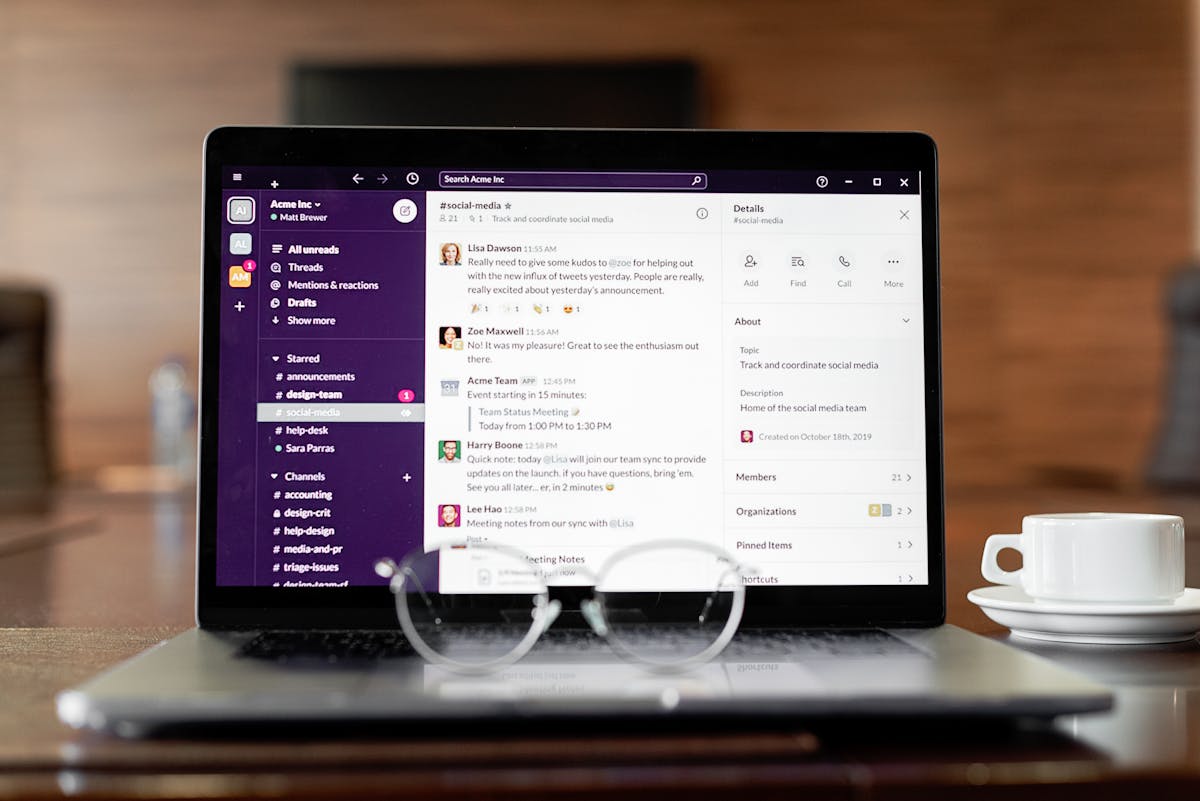
Teams is free if you have a business account. It’s a chat and collaboration platform, not a project tracker. You can track projects in Teams using Channels and Pinned Messages.
Create a channel for each client or project. Pin important documents, deadlines, and progress updates in the channel. Discuss tasks in the chat. Share files and screenshots. It’s simple and keeps everything in one place where your team sees it.
The limitation is Teams isn’t designed for project tracking. There’s no Gantt chart, no automated status summaries, and no deadline reminders. It’s more of a communication tool where you mention projects.
For freelancers working solo, Teams alone isn’t much help. For small teams (2-5 people), Teams channels work as a lightweight project tracker.
Microsoft Planner: Basic Task Management
Planner is free with Office 365. You create plans (one per project), add tasks, assign them to team members, and set due dates. Planner shows a board view (like Trello) where you organize tasks: To Do, In Progress, Done.
Planner works well for 1-3 projects with 5-20 tasks each. It’s simple, visual, and integrates with Teams. It doesn’t have Gantt charts or resource tracking, so it’s not suitable for complex projects.
For tracking freelance projects and proposals, Planner is lightweight and functional. You’d create a Planner board per client and log all work there.
Microsoft Project: Enterprise Software
Microsoft Project is the heavy-duty tool. It costs $20-30 per month per user. It includes Gantt charts, resource allocation, budget tracking, and dependency management. It’s designed for large projects with many tasks and team members.
For solo freelancers, you’ll never use 80% of Project’s features. It’s overkill. Project is for construction companies, engineering firms, and organizations managing $1M+ budgets.
Freelancers who try Project often abandon it because it’s too complex. Setup alone takes days.

Comparing the Options
Excel: Free or cheap. Works for simple tracking. No automation needed.
Teams: Free. Good for team communication about projects. Not a dedicated tracker.
Planner: Free with Office 365. Visual board-style task management. Works for small projects.
Project: Expensive. Complex. Overkill for freelancers.
What Freelancers Actually Use
Most freelancers use either Excel or a dedicated tool like Waco3. Excel is familiar and free. Waco3 combines proposals, projects, invoices, and analytics, so you get project tracking plus proposal tracking and follow-ups in one place.
Some use Planner if they have an Office 365 subscription and want something slightly fancier than Excel.
Almost no freelancers use Microsoft Project because it’s designed for corporate environments, not solo work.
The Right Fit for Freelancers
If you’re managing under 10 active projects, use Excel. It’s fast to set up and takes seconds to update.
If you have a team of 2-5 and want lightweight tracking with collaboration, use Planner.
If you’re managing proposals, projects, invoicing, and client follow-ups all at once, a dedicated tool like Waco3 might be worth it. One tool for everything means less switching between apps.
Don’t buy Microsoft Project thinking it will solve your project tracking problems. For freelancers, it creates more work than it solves. Use Excel or a tool built for your specific needs.
Next Steps
Start with what you have. If you use Excel, build a simple project tracking sheet today. If you have Office 365, try Planner for one project and see if it works. If you’re managing proposals and projects together, explore Waco3 to see if combining both in one tool works better.
Ready to send stronger proposals?
Build, send, and track proposals in one place so follow-up is easier.
Start your free trial →