Sending an invoice through Gmail is straightforward, but there’s a right way to do it. This protects your payment terms and keeps your business looking professional. Most freelancers and small business owners send invoices daily through Gmail, yet many skip simple practices that speed up payment and cut down on follow-up emails.
Create Your Invoice First
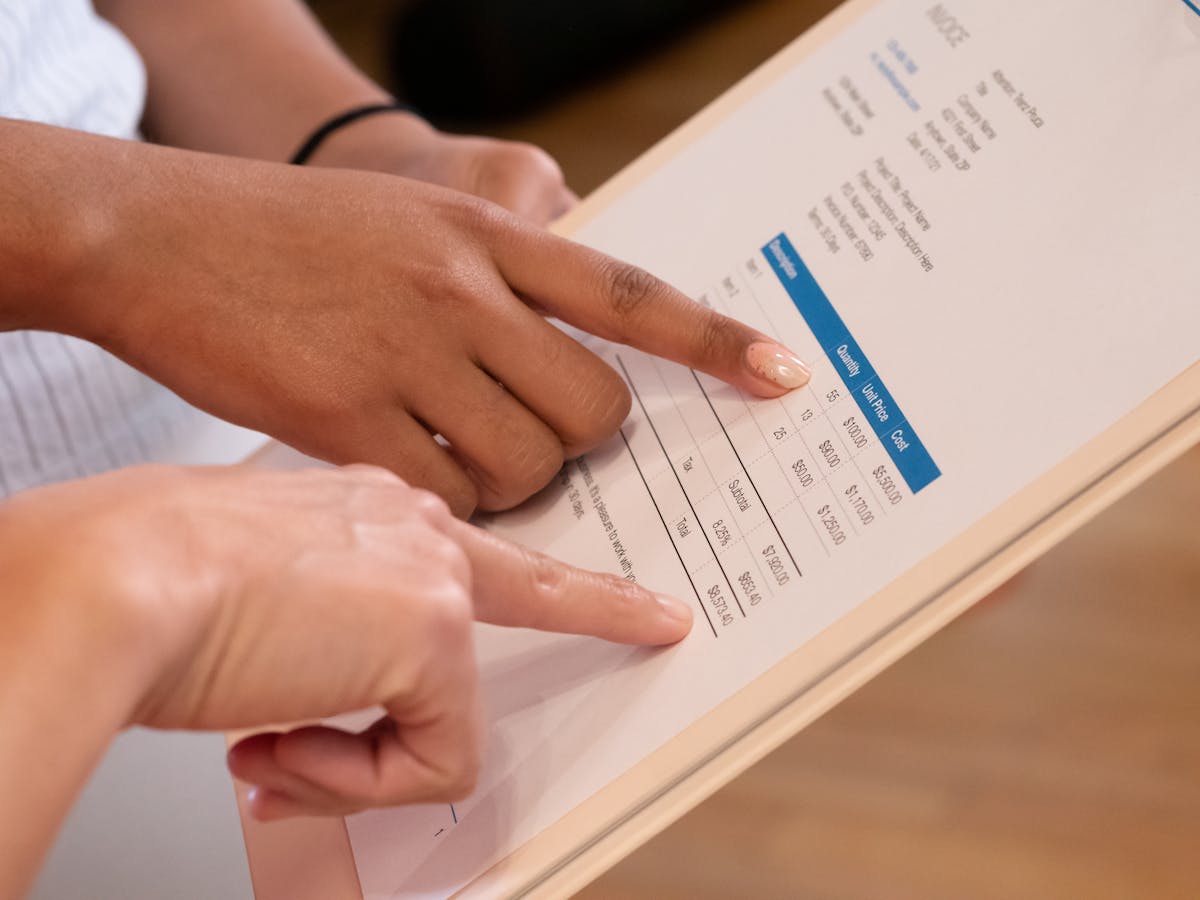
Before touching Gmail, build your invoice in a format that travels well. Use a PDF template, Word document, or spreadsheet. Include these essentials: invoice number, date, due date, itemized services or products with prices, payment methods, and terms. Export as PDF to preserve formatting. A messy or unclear invoice slows down payment and creates confusion.
Many freelancers waste time formatting in Word or Excel. A proposal and invoice tool like Waco3 handles formatting automatically and tracks when clients open it. That visibility alone cuts follow-up time in half.
Compose a Professional Cover Email
Your invoice email is a business letter. Don’t just attach a PDF. Write a short, clear message with the total amount and due date in the body. For example: “Hi [Client Name], attached is your invoice #2024-001 for $2,400 due by June 15. Please let me know if you have any questions.”
This works because clients skim emails. When they see the amount and date immediately, they’re more likely to act. Hidden in an attachment, it gets overlooked.
Attach the PDF Correctly
Click the paperclip icon in Gmail’s compose window and select your invoice PDF. Check the filename before sending. Use something like “Invoice-2024-001-ClientName.pdf,” not “Document1.pdf.” A clear filename looks professional and helps clients file and find it later.
Attach last, after writing your email. This habit prevents accidentally sending blank messages.

Set a Clear Due Date and Payment Instructions
State the due date explicitly in your email. “Payment due by June 15, 2026” is clearer than “Net 15” for most clients. List your payment methods: bank transfer, PayPal, credit card, or check. Include account information or payment links in the email. Don’t make clients dig through the PDF for these details.
List your preferred method first. Clients take the easiest option.
A one-minute email body that includes the amount, due date, and payment methods cuts payment time by an average of five days compared to sending the invoice with no context.
Use Gmail Labels and Filters
After sending, label the email “Invoices” or “Accounts Receivable” for easy retrieval. Set up a Gmail filter to auto-label outgoing invoices if you send them regularly. This keeps your inbox organized and shows which invoices you’ve sent and when.
Create another filter for payment receipts so you see client confirmations at a glance. This beats searching your sent folder.
Track Opens and Reads (Optional Upgrade)
Gmail doesn’t show when someone opens an attachment. For tracking, use read receipts or switch to a tool that monitors invoice views. Waco3 shows you exactly when clients open invoices, so you know whether they’ve seen it and when to follow up.
This eliminates guessing. Instead of “did you get my invoice?” you can say “I see you opened the invoice on June 2, any questions?”
Follow-Up Timing
Set a calendar reminder to follow up three days before the due date if you haven’t received payment. Keep the tone neutral: “Hi [Client], just a reminder that invoice #2024-001 is due tomorrow. Let me know if there are any issues.”
Don’t wait until after the due date to reach out. A gentle heads-up often prevents delays entirely.
Final Checklist Before Hitting Send
Read the email once more. Verify the client’s email address, the amount, and due date match in both the body and PDF. Confirm the PDF is attached. This 30-second check prevents errors.
Send invoices during business hours on weekdays. A Monday morning invoice gets faster action than Friday night.
Related: How Many Days Do You Have to Pay an Invoice? Legal Answer covers payment term laws that protect you.
Ready to send stronger proposals?
Build, send, and track proposals in one place so follow-up is easier.
Start your free trial →