Canva invoices are a quick solution for starting freelancers. They look professional, they’re free, and they take five minutes to create. But once you’re juggling multiple clients, the lack of automation creates chaos. This guide looks at when Canva works and when you need better tools.
Setting Up Your Canva Invoice Template
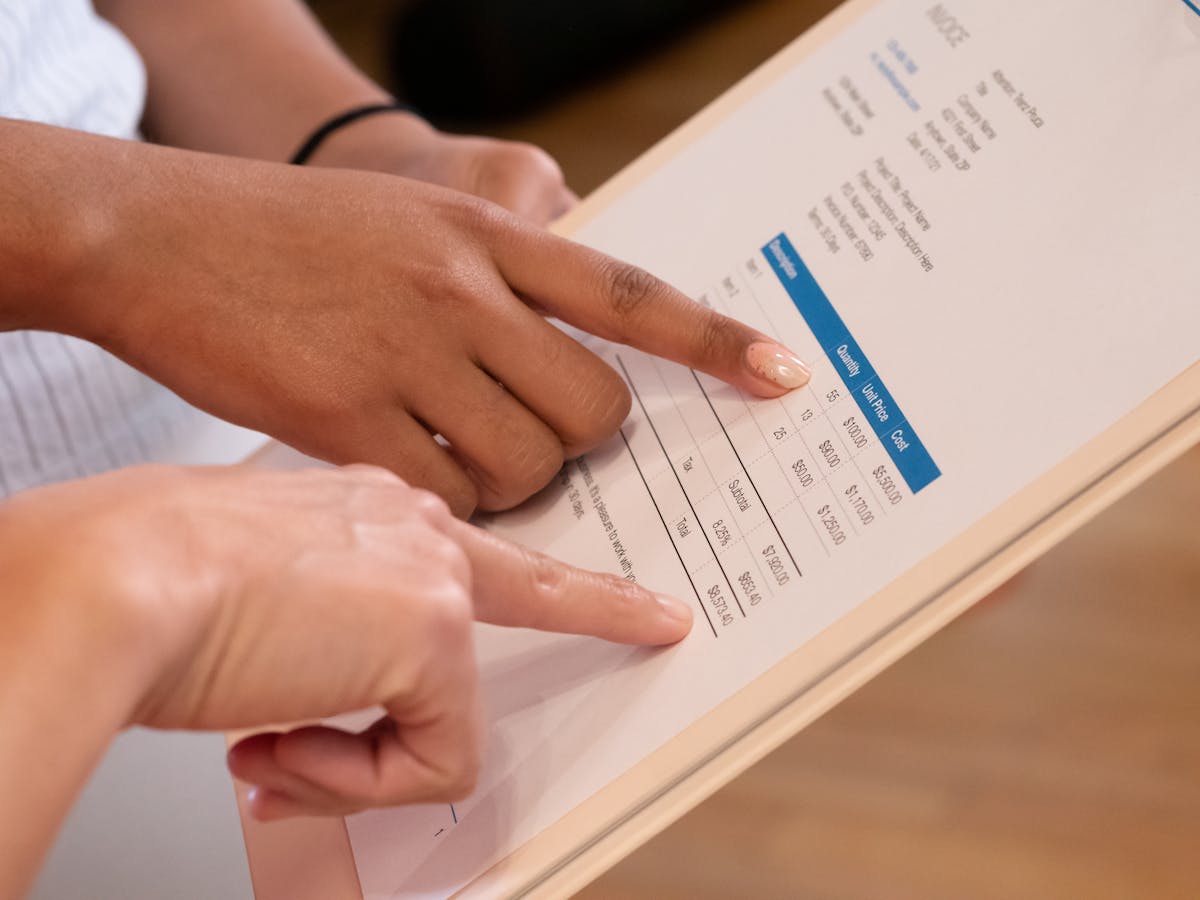
Search “invoice” in Canva and you’ll find dozens of free templates. Pick one that matches your brand or aesthetic. Change the name, logo, colors, and contact details to match your business. Save it so you can duplicate it for each new invoice without starting from scratch.
Canva templates are fully customizable. Add your business name, address, phone, and email. Many templates have fields for invoice number, date, due date, itemization, and payment instructions. You can rearrange, delete, or add fields. This customization takes 15-20 minutes per template but only once.
Keep your Canva invoice consistent. Use the same template for every client so they recognize it as professional and from you. Consistency also makes it easier for you to create invoices quickly. Once the template is done, creating new invoices is just duplication and number updates.
Customizing Canva for Your Brand
Change the colors to match your website and proposals. If your brand is blue and white, make your invoice blue and white. This consistency builds brand recognition and makes you look professional.
Add your payment instructions clearly. “Payment due 30 days from invoice date” or “Due upon receipt” should be visible. Include your payment methods: bank transfer, PayPal, Stripe, or credit card. The easier you make payment, the faster clients pay.
Include a late payment policy if relevant. “Invoices 30+ days overdue will incur a 1.5% monthly late fee” is standard. Print it on the invoice so clients see it upfront and aren’t surprised if needed.

Creating and Sending Canva Invoices
When you complete a project, duplicate your template, change the invoice number, date, due date, and line items. Add what you charged and for what work. Save it as a PDF and email it to your client.
The entire process takes 5-10 minutes per invoice if your template is solid. This is fast enough for a handful of clients. Once you hit 20+ clients, five minutes per invoice per week starts adding up. You’ll be spending 2+ hours per week just on invoice creation and sending.
The Pain Points That Appear Later
As your client list grows, you forget which invoices are paid. You have a folder of PDFs but no system tracking payment status. One client paid, another is 15 days overdue, a third is 45 days late. Without automatic reminders, you manually follow up.
You also can’t track revenue trends without manually adding invoice totals. Knowing total revenue per client or profitability per project means copying numbers into a spreadsheet. This is error-prone and time-consuming.
Payment reconciliation gets messy. A client says they paid, but you can’t find the invoice quickly. Without invoice numbers linked to payments, matching them requires detective work.
Late payment follow-up becomes stressful. You manually email overdue invoices. If the email bounces or gets marked spam, you won’t know. Many invoices slip past 30 days because you forgot to follow up.
When Canva Invoices Are Enough
Use Canva invoices if you have fewer than 5 active clients, invoice less than once per week, and don’t mind manual follow-up. For side work or part-time freelancing, Canva is fine. The minimal cost and fast setup make sense.
Canva also works well for creative portfolios or brand-forward invoices where appearance matters. If your invoice is part of your brand image (like a designer whose invoice is a beautiful design), Canva’s customization might be worth staying.
When to Switch to Dedicated Software
Switch to dedicated invoicing when you have 10+ active clients or invoice more than twice per week. When automatic payment reminders would save you hours, the cost of dedicated software is worth it. When you need to track payment status across projects and see overdue invoices at a glance, software wins.
Tools like Waco3 offer automation that Canva can’t: automatic reminders, payment tracking, revenue dashboards, and late fee calculations. They integrate with payment processors like Stripe and PayPal so payments show up automatically. You also get proposal tracking, project management, and analytics in one platform.
The Cost Comparison
Canva: Free (or $120/year for premium). Dedicated invoicing software: $20-100/month depending on features.
That sounds expensive until you realize Canva costs you time. One hour per week on manual invoicing and follow-up is 52 hours per year. At even $25/hour, that’s $1,300 of your time. A $500/year software tool that saves half that time is a bargain.
Transitioning From Canva to Professional Software
If you’re using Canva now and your business is growing, plan the transition. Export all your Canva invoices and payments into a spreadsheet. When you switch to dedicated software, most platforms can import invoice history so you don’t lose any records.
Your clients won’t notice the change as long as the invoices still look professional and payment terms don’t change. The benefit is entirely on your end: less time managing invoices, fewer mistakes, and faster payment.
Canva invoices work for starting out, but don’t scale past 5 clients. Once invoicing becomes recurring, professional software saves hours monthly.
Ready to send stronger proposals?
Build, send, and track proposals in one place so follow-up is easier.
Start your free trial →