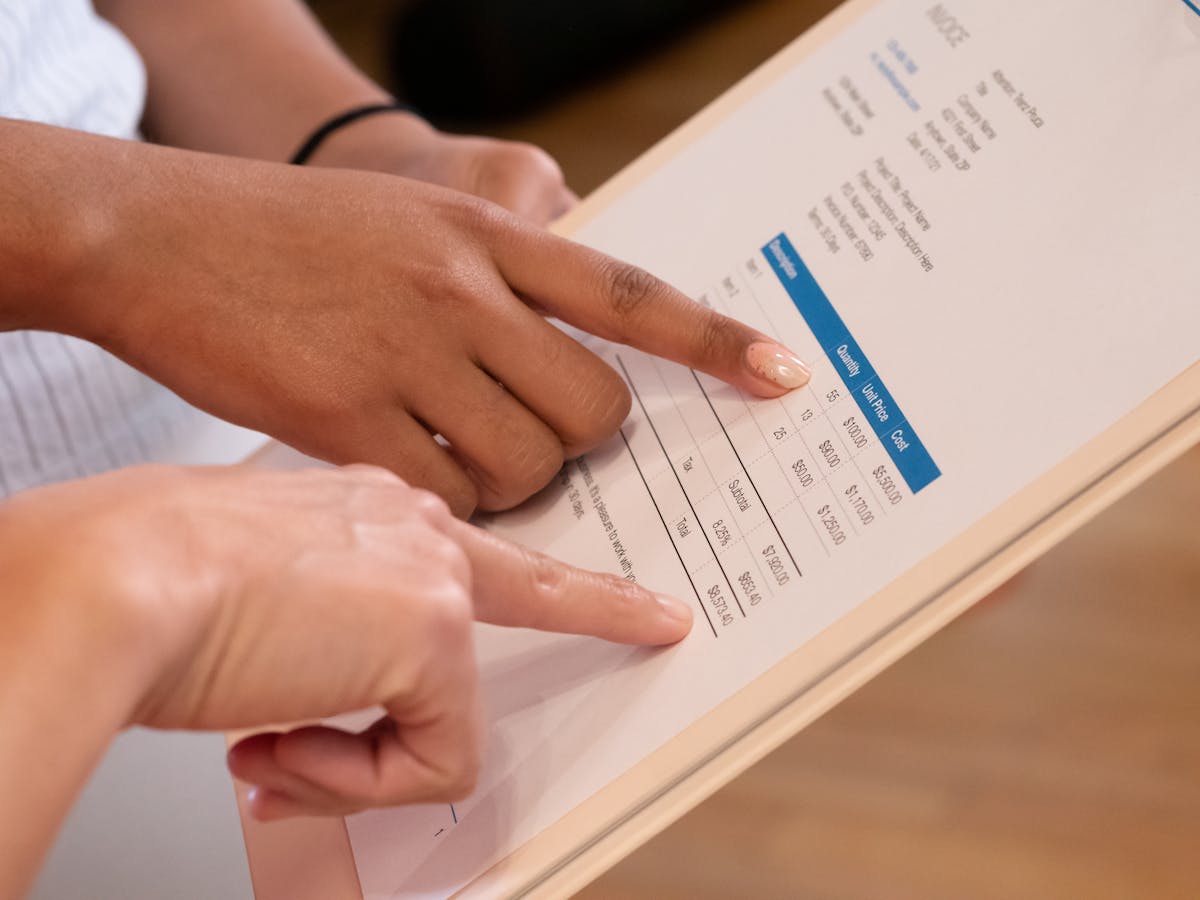
Canva’s invoice templates look great. For a lot of freelancers, that’s enough—professional output for free, no software to install. Just know where the design-first approach ends and the workflow begins.
What Canva does well for invoices
Visual quality. Canva’s templates are genuinely attractive. Many are cleaner and more modern than the default output of traditional invoicing software. If visual presentation of your invoice matters to your brand, Canva competes well.
Template variety. Searching “invoice” in Canva surfaces hundreds of designs across styles—minimal, bold, illustrated, dark-themed, industry-specific. Most are free; some are Pro-only.
Customization. Swapping in your logo, adjusting brand colors, and changing fonts is fast and intuitive. No design skills required.
Free at the core. The majority of Canva invoice templates are available on the free plan. A Pro subscription unlocks more premium designs and the Brand Kit feature for consistent branding.
PDF export. Download as PDF Standard for emailing, or PDF Print for higher resolution. Both options produce clean, professional output.
What Canva can’t do
No calculations. Every number is a text field. If you change a line item price, the total doesn’t update. You have to calculate and type every value manually—including subtotals, tax, and totals. This is the biggest practical limitation for complex invoices.
No invoice numbering. Canva doesn’t know what invoice number you’re on. You maintain your own numbering system and type it in manually every time.
No payment tracking. There is no way to mark an invoice as paid, sent, or overdue within Canva. Your payment records live in a spreadsheet or a separate accounting tool.
No client database. Each invoice is a standalone design. Canva doesn’t store client information, invoice history, or recurring billing data.
No reminders or automation. If a client doesn’t pay, Canva won’t send a reminder. You track overdue invoices manually.
No direct payment links. Unlike dedicated invoicing tools, Canva doesn’t integrate payment processors. Clients can’t pay from the invoice itself.
Using Canva for invoices means your bookkeeping system is entirely separate. Every payment, due date, and outstanding balance needs to be tracked in another tool—a spreadsheet, an accounting app, or a notes document.
How to set up a Canva invoice template correctly
Start with a master template. Customize one design with your permanent information: business name, logo, contact details, payment information, and your standard terms. Lock these elements in the template.
Duplicate for each invoice. Go to File → Make a copy (or duplicate the page) for every new invoice. Never edit the master directly.
Manual calculation checklist. Before exporting, verify:
- All line item totals (quantity × unit price)
- Subtotal (sum of all line item totals)
- Tax amount (subtotal × tax rate)
- Grand total (subtotal + tax, or subtotal minus discount + tax)
Name files clearly. Save each exported PDF with a consistent naming system: Invoice_2026-027_ClientName_May2026.pdf. This makes finding past invoices manageable.
Log it elsewhere. Note the invoice number, client, amount, and due date in your payment tracking spreadsheet or accounting tool every time you send an invoice.
Canva invoice templates vs. dedicated invoicing tools
| Feature | Canva | Invoicing Software |
|---|---|---|
| Visual quality | Excellent | Good to excellent |
| Auto-calculations | No | Yes |
| Invoice numbering | Manual | Automatic |
| Payment tracking | No | Yes |
| Payment links | No | Usually yes |
| Client history | No | Yes |
| Recurring billing | No | Usually yes |
| Cost | Free–$15/mo (Pro) | $0–$20/mo |
For freelancers sending one or two invoices per month, the manual overhead of Canva is manageable. For freelancers billing regularly—weekly or multiple times per month—even a free invoicing tool like Waco3’s invoice feature saves meaningful time over the design-only approach.
The templates worth looking at in Canva
When searching Canva’s template library, filter by:
- Style: Minimalist templates are the most versatile and look professional across industries
- Color: Choose one that complements your brand; all colors can be changed anyway
- Layout: Look for templates with a proper line-items table rather than a single lump sum design
Avoid templates that only have a single price field and no itemization—they’re designed for product sellers, not service providers who need to break down their work.
A good Canva invoice template gets you most of the way to a professional invoice. Whether it’s the right workflow tool depends entirely on your invoicing volume.
Ready to send stronger proposals?
Build, send, and track proposals in one place so follow-up is easier.
Start your free trial →